How to Make an AI Presentation in Canva
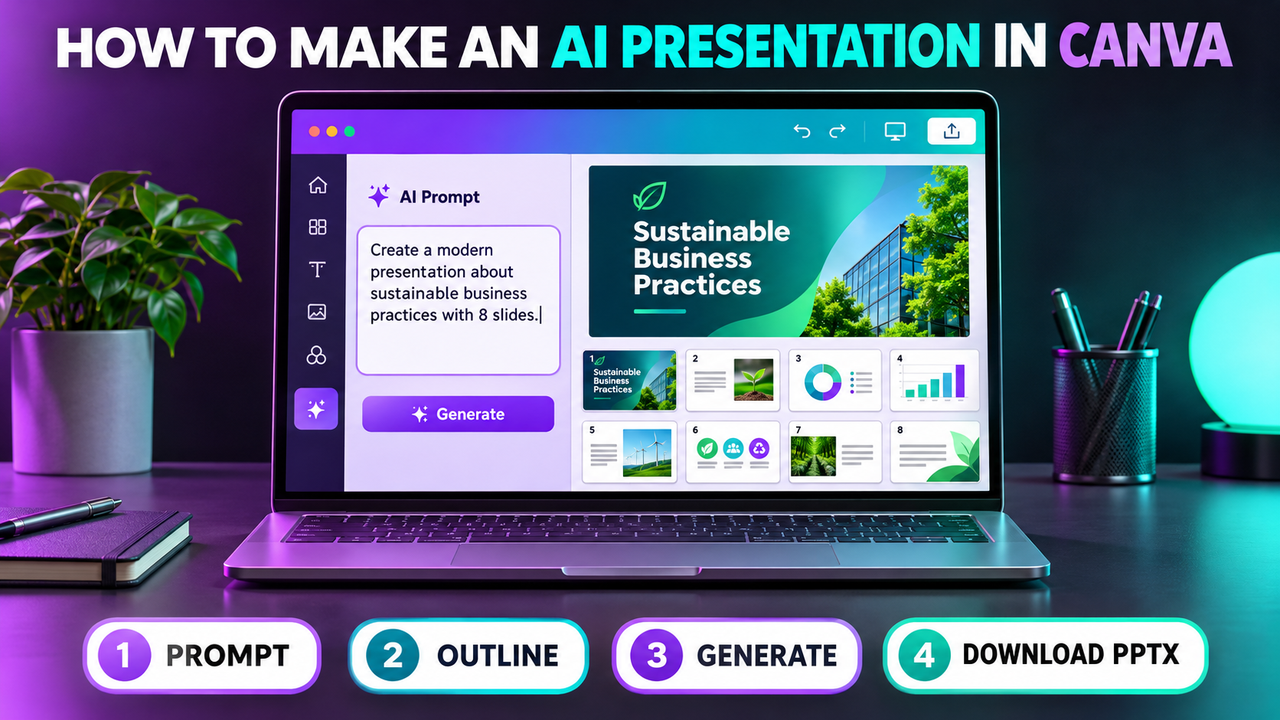
To make an AI presentation in Canva, open Canva AI from the homepage, choose Presentation, describe your topic in a sentence or two, check the outline it proposes, then select Generate presentation. You get an editable deck in the normal Canva editor, which you can rework, present from Canva or download as PowerPoint (PPTX) or PDF.
Yes, Canva has an AI presentation maker, and you can use it on the Free plan. The free allowance is small, though, and Canva counts presentation generation as a Premium AI task. The details below were checked on 20 October 2026 against Canva's own help center; Canva updates its AI tools often, so the menu names may move.
Does Canva have an AI presentation maker?
It does. Canva's help center calls the current version "Canva AI for Presentations". You will still see the older name, Magic Design, on Canva's marketing pages and in many tutorials. Magic Design was the original text-to-presentation feature in the editor's Design tab. Today the main route runs through Canva AI, the assistant in the left-hand menu on desktop (bottom menu on mobile).
Canva AI can build slides from three kinds of starting point:
- A written or spoken prompt, which produces an outline first and then a full deck.
- A template, using the Edit with AI button on a template card. The template sets the style and your prompt sets the content.
- Your own data, such as a CSV file or a Canva Sheet, which Canva turns into a deck with charts.
You can also attach a PDF or Word file to the prompt for extra context. That is useful if you have a report or notes you want turned into slides, although Canva treats the file as context for the prompt rather than converting it page by page. If document-to-slides is your main job, our guide to turning a document or PDF into slides with AI compares tools built around that workflow.
How Canva AI presentations work
Canva AI works in two stages. It first writes an outline of slide titles and key points from your prompt. You can edit that outline before anything is designed. Then it generates the deck, picking layouts, images and colors from Canva's template library and applying a Brand Kit if you choose one.
The result is a normal Canva design. Every text box, image and shape can be edited, moved or deleted, and you can keep using Canva's other AI tools on it, such as Magic Write for rewording text or writing speaker notes.
One limit is worth knowing early. Canva's help center says you only get the outline step when you start from Canva AI on the homepage. Generating from the Templates tab skips it and gives you fewer options.
Step by step: how to use the Canva AI presentation maker
- Sign in to Canva (a free account works) and stay on the homepage.
- Select Canva AI in the side menu. On mobile, it is in the bottom menu.
- Select Presentation, or type a request such as "a 10-slide presentation on our Q3 marketing results for the sales team".
- Optional: select the plus icon to upload a PDF or Word file, add an existing design, apply your Brand Kit or connect an app. You can also speak the prompt using the microphone icon.
- Submit the prompt.
- Review the outline. Rename slides, cut sections or add points you need before moving on, since fixing the structure here is quicker than fixing it slide by slide later.
- Select Generate presentation.
- Select Open to edit the deck in the editor, or send another prompt if the result is off.
Canva AI also has a Web Research option for pulling in recent information on a topic. Check any facts, figures or quotes it adds before you present, as you would with any AI-written content.
Prompts that give better results
Canva's help pages suggest describing what you want clearly, and its usage page notes that more complex requests use more of your AI allowance. In practice, a good prompt names four things: the topic, the audience, the rough number of slides and the tone. "Pitch deck for a pet-sitting startup, 8 slides, for local investors, friendly but data-led" gives the generator far more to work with than "pet startup pitch". If you have a brand, apply the Brand Kit at the prompt stage so you are not recoloring slides afterwards.
Using Magic Design from a template
If you already know the look you want, start from a template instead:
- Open a presentation in the editor and go to the Templates tab (or the Brand tab for Brand Templates).
- Search for a template and select Edit with AI on its card.
- Describe the content you want and let Canva AI fill it in.
This is the closest match to the old Magic Design "text to presentation" flow. It is faster when style matters more than structure, but you lose the outline review step. You can also use Edit with AI on one of your own private designs from Projects to remix an existing deck.
Is the Canva AI presentation maker free?
Canva presentations are free to make, and the AI generator is available on the Free plan, within limits. Canva's AI usage page (checked 20 October 2026) lists these monthly allowances:
| Plan | Premium AI tools (includes AI presentations) | Notes |
|---|---|---|
| Free | Up to 20 uses, shared with Standard tools | Resets at midnight UTC on the 1st of each month |
| Pro, Teams, Nonprofits | Up to 200 uses | Resets on your billing date |
| Business, Enterprise | Up to 400 uses | Resets on your billing date |
| Education | Up to 200 uses | Resets on your billing date |
Canva describes these as "up to" figures based on simple prompts. A full presentation is a heavier request than a single image, so it can use more of the allowance than one "use". Canva does not publish a fixed cost per deck, so we cannot tell you exactly how many presentations 20 uses covers. Canva also does not call these "credits" on its help page; it uses the term AI allowance. When you run out on the Free plan, Canva says you will see short pauses between generations until the allowance resets. Our Canva AI credits explainer covers how the allowance works in more detail.
Two other free-plan limits affect presentations:
- Premium template elements (some photos, graphics and fonts) show a watermark on Free accounts. You can pay for each element, swap it for a free one, or upgrade to Pro.
- Canva's product page for the AI presentation maker still says Magic Design can be used "up to 10 times for free". That text appears to describe the older Design-tab feature and does not match the help center's current allowance table. We have treated the help center as the more current source.
Canva Pro was listed at $18 a month in the US in recent third-party pricing write-ups. Yearly pricing is quoted differently across those sources and varies by region, so check Canva's pricing page before you buy. Our Canva pricing guide compares the Free, Pro and Business plans for presentations.
How to download a Canva AI presentation
Once your deck is done:
- Select Share in the top right of the editor.
- Select Download.
- Choose a file type. For presentations, Canva offers PPTX (Microsoft PowerPoint) and PDF, plus image and video formats such as PNG, JPG and MP4.
- Select Download.
Can you export Canva AI slides to PowerPoint?
Yes. PPTX download is available for presentation designs only, and the file opens in PowerPoint as slides you can keep editing. Canva's own help page warns that designs "may look different" in PowerPoint, that you may need to install the fonts you used, and that animations and embedded videos do not carry over. Expect to spend a few minutes fixing spacing and fonts after the download. Our Canva vs PowerPoint comparison goes further into when each tool makes sense.
If you need AI that works inside PowerPoint itself, without the export step, Microsoft Copilot in PowerPoint and the add-ins in our AI add-ins for PowerPoint and Google Slides guide are the more direct options. The AI PowerPoint tools category lists the rest.
Can you export Canva AI slides to Google Slides?
Not directly. Canva has no "Export to Google Slides" button. The usual route is to download the deck as PPTX, upload it to Google Drive and open it with Google Slides. The same caveats apply: fonts may be substituted, and layered layouts can shift. Going the other way is easier, as Canva can import Google Slides and PowerPoint files for editing. If your team lives in Google Slides, see can you use AI with Google Slides for tools that work inside it.
Where Canva AI fits, and when another tool fits better
Canva's strength is everything around the generator. You get a huge template and stock library, brand kits, real-time collaboration and one editor for slides, social posts, documents and video. If your team already designs in Canva, generating a first draft there keeps the deck in the same place as the rest of your brand assets. That is why we list it under AI design suites rather than as a dedicated slide generator.
The trade-offs are just as specific:
- The free AI allowance is shared with Canva's other AI tools, so a few image generations can eat into what you have left for presentations.
- The generator builds from Canva's templates, so results look like Canva templates. That is fine for most uses but less distinctive than a custom design.
- PowerPoint and Google Slides users face an export step, with some formatting clean-up.
- There is no dedicated document-to-deck converter. Canva retired its Docs to Decks feature, and attaching a PDF only gives the AI context.
If you mainly want a fast, structured first draft from a prompt or document, a dedicated AI presentation maker may suit you better. Gamma is the most common comparison; our Gamma vs Canva article covers the differences in generation, editing and export. For a wider shortlist, see our Canva alternatives guide or the AI presentation makers category.
FAQ
Does Canva have an AI presentation maker?
Yes. It is called Canva AI for Presentations in Canva's help center and was previously sold as Magic Design. You start it from Canva AI on the homepage.
Can Canva AI generate slides from text?
Yes. Describe the presentation in a prompt, review the outline and Canva AI generates a full deck. You can also attach a PDF or Word file as extra context.
Can Canva AI make a slideshow?
Yes. The generated deck is a normal Canva presentation, so you can present it as a slideshow from Canva, add transitions, or download it as MP4 video.
Is Canva's AI presentation generator free?
You can use it on the Free plan, but Canva counts it as a Premium AI tool and the Free plan gets up to 20 Standard or Premium uses a month in total. Pro raises that to up to 200 Premium uses.
Are Canva presentations free?
Making and presenting presentations in Canva is free. Some template elements are Pro-only and appear with a watermark on Free accounts unless you buy or replace them.
Can I download a Canva AI presentation as PowerPoint?
Yes, as a PPTX file from Share, then Download. It is editable in PowerPoint, but fonts, animations and embedded videos may need fixing or may not carry over.
Next step
If you are already a Canva user, open Canva AI and try a short prompt on the Free plan before paying for anything. To see Canva's plans, strengths and limits next to similar tools, visit the Canva listing. If you want something built specifically for generating decks, browse the AI presentation makers category.
Listings related to How to Make an AI Presentation in Canva
Canva
The presentation side of Canva's all-in-one design suite, with Magic Studio AI turning a prompt or document into an editable, template-based deck. Easiest on-ramp, generous free tier, editable PowerPoint in and out — but a generalist, not a specialist.
Gamma
An AI presentation maker that turns a prompt or a pasted document into a finished-looking deck in about a minute. A standalone web app — great free plan for on-screen decks, but clean PowerPoint export and branding are paid.
Microsoft Copilot for PowerPoint
Microsoft's AI built directly into PowerPoint — builds decks from a prompt, a Word doc or a PDF, all as native editable .pptx. Unmatched integration with your real files; no free tier, requires a paid Microsoft 365 + Copilot licence.