
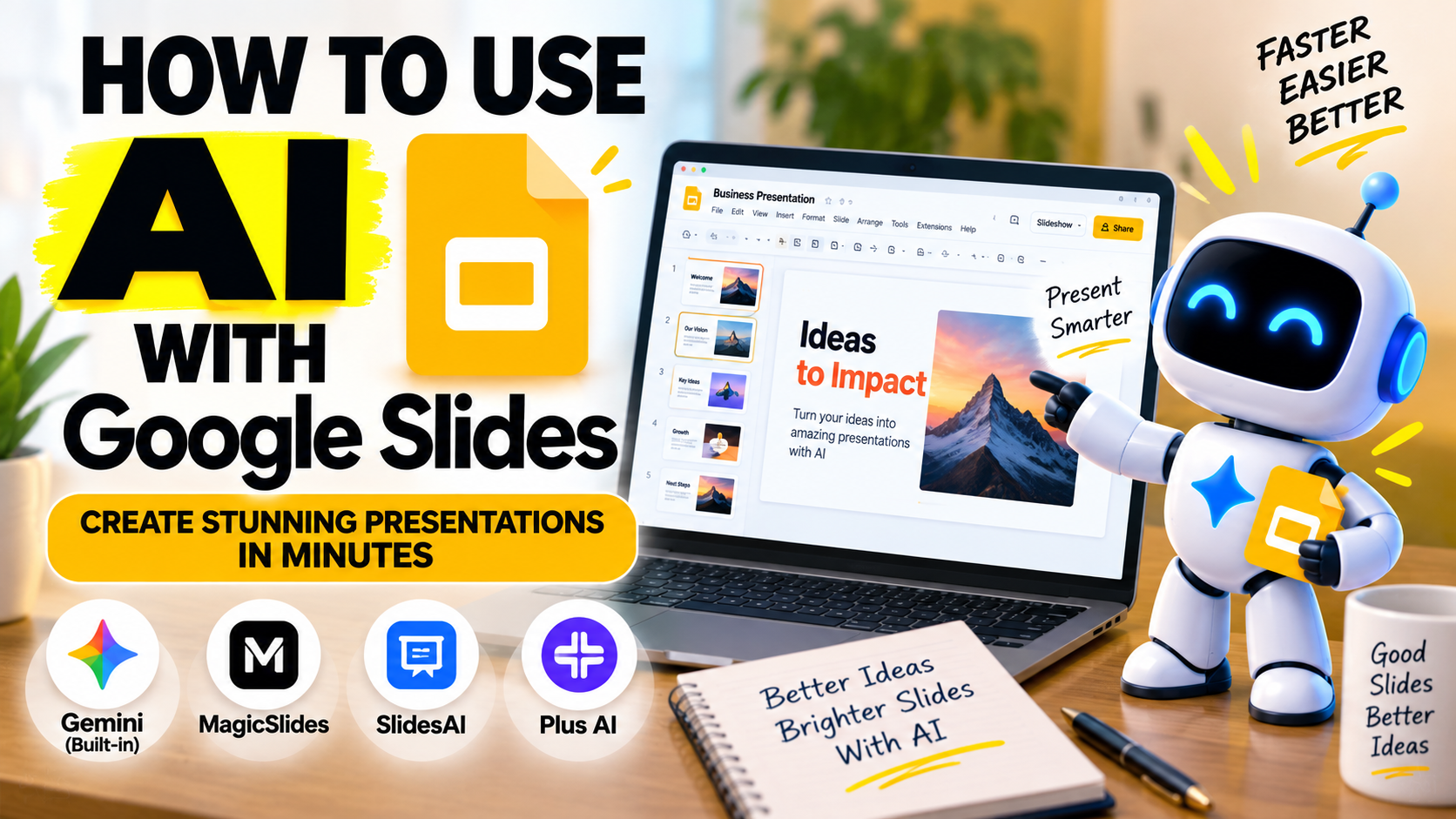
Can You Use AI With Google Slides?
Yes, you can use AI with Google Slides, and as of 2026 there is more than one way to do it. The three routes are: Google's own Gemini, which now builds full, editable presentations inside Google Slides; third-party add-ons such as MagicSlides, SlidesAI and Plus AI that run inside Slides; and standalone AI makers where you build the deck elsewhere and import it. Which one is right for you depends mostly on what Google plan you have and what you are starting from — a topic, a document, or an existing deck. Here is how each option works and when to use it.
The quickest way to decide
Before the detail, here is the short version.
- If you already pay for a Google Workspace or Google AI plan that includes Gemini, use Gemini in Google Slides first — it is built in, native, and needs no extra tool.
- If you do not, and you want a free or cheap way to generate slides inside Slides, use an add-on like SlidesAI or MagicSlides.
- If your source is a PDF, a web page or a YouTube video rather than typed text, MagicSlides handles those directly.
- If your real job is editing decks you already have, Plus AI is the strongest at that.
- If you first need to understand a pile of documents, use NotebookLM, then build the deck in Slides.
Now the explanation behind those picks.
Option 1: Google's own AI — Gemini in Google Slides
The biggest change is that Google Slides now has capable AI built directly into it. In mid-2026 Google rolled out the ability for Gemini, its AI assistant, to generate a complete, multi-slide presentation inside Google Slides from a single prompt. Earlier versions of AI in Slides mostly helped with one slide at a time — writing text or generating an image — but this newer version builds a whole deck.
What it can do:
- Create a full presentation from a prompt. Describe your topic and goal in the Slides side panel, and Gemini drafts a multi-slide deck.
- Ground the deck in your own files. You can point it at documents, and it can also pull relevant material from your Google Drive, Gmail and Chat, so the slides reflect your actual content rather than generic filler.
- Match an existing style. You can tell it to follow the look of another presentation.
- Produce fully editable slides. The result is native Google Slides — not flat images — so you can change anything afterwards using the normal Slides tools.
- Help with single slides and speaker notes from the same side panel once your deck exists.
The important limitation is access. This is not part of the free Google Slides that anyone gets with a Google account. Gemini's presentation features require an eligible paid plan — a Google Workspace business or enterprise plan that includes Gemini, a Google AI Pro or Ultra subscription, or a qualifying education plan. Google also began the rollout in English (United States) first, so availability may vary by region and account when you try it.
The practical takeaway: if you or your organisation already pay for one of those plans, Gemini in Slides is the most integrated option, because it lives inside the app and uses your own files. If you do not, one of the tools below will be easier and cheaper than subscribing purely for slide generation.
Option 2: Third-party AI add-ons that run inside Slides
If you do not have a Gemini-enabled plan, you can add AI to Google Slides with a third-party add-on. These install into Google Slides and generate a deck as a normal, editable Slides file, so you keep everything Slides already gives you — sharing, comments, version history and your Drive.
Three are worth knowing.
MagicSlides is a native Google Slides add-on that turns a topic, a PDF, a Word document, a website URL or a YouTube video into a deck inside Slides. Its strength is the range of things it can start from: many add-ons only accept pasted text, while MagicSlides can build a deck straight from a document or a video. It has a free plan (no card required), though the free output is watermarked and limited to a few generations a month; removing the watermark, exporting a clean PowerPoint or PDF, and the higher limits are on its paid plans, which start at $29/month.
SlidesAI works inside both Google Slides and PowerPoint and focuses on the simplest job: paste in text — notes, an article, a topic — and it builds a deck. It is cheaper and simpler than MagicSlides, and its free plan (12 presentations a year) is a genuine way to try the add-on idea. The trade-off is that it accepts fewer source types and is lighter on editing features.
Plus AI also works in both Google Slides and PowerPoint, and it is the most capable of the three. Its standout is something most AI slide tools cannot do well: it edits and reworks decks you already have, not just new ones. If you spend more time updating existing decks than creating them, that matters more than raw generation speed. Plus AI is trial-only rather than free, and starts around $10/month.
All three produce native, editable Google Slides, which is the main advantage of an add-on over building elsewhere and exporting. For a direct, side-by-side comparison of these tools, see our guide to the best AI add-ins for PowerPoint and Google Slides.
Option 3: Build the deck elsewhere and bring it into Slides
The third route is to use a standalone AI presentation maker and then move the result into Google Slides. This is worth understanding because it does not always work as cleanly as people expect.
Standalone tools like Gamma and Canva do not run inside Google Slides. You build the deck in their app, then export it — usually as a PowerPoint (.pptx) file — and import that file into Google Slides. Google Slides can open a PowerPoint file, so this works, but you may lose some formatting in the round trip, and the more a tool relies on its own special layout (as Gamma's reflowable decks do), the more the imported version can look different from the original.
So this route is fine if you specifically want a particular tool's design and are willing to tidy up after importing. If your goal is simply "AI slides inside Google Slides", the native options above are less hassle.
One more tool belongs in this group for a different reason. NotebookLM, Google's free research tool, can turn your uploaded documents into a slide deck, but its slide output is image-based rather than editable. It is excellent for understanding a set of sources first, and the wrong choice if you need to edit the slides afterwards. A common approach is to use NotebookLM to make sense of your material, then build the actual editable deck in Google Slides with Gemini or an add-on.
The distinction that matters most: editable slides vs images
Across all of these options, the single most useful thing to check is whether you get editable Google Slides or flat images at the end.
You get genuine, editable Google Slides from Gemini in Slides and from the add-ons (MagicSlides, SlidesAI, Plus AI), because they build the deck inside Slides using real slide elements. You can then change text, move things around and restyle.
You can get a less flexible result from the import route if the original tool's design does not translate cleanly, and NotebookLM's slide export is images rather than editable slides.
If you know you will need to adjust the deck — fix wording, change the order, apply your own theme — favour the options that produce native, editable Slides. It saves you from rebuilding a deck you cannot properly edit.
What it costs to use AI with Google Slides
The pricing picture for Google Slides specifically is worth spelling out, because "free" is not simple here.
Google Slides itself is free with any Google account, but its built-in Gemini presentation generation is not part of that free tier — it requires a paid Workspace or Google AI plan. So the most integrated option is the one you are least likely to have for free.
Among the add-ons, SlidesAI and MagicSlides both have genuine free plans, with the usual catches: SlidesAI limits you to 12 presentations a year, and MagicSlides watermarks its free output and caps how many you can generate each month. Plus AI is trial-only. For unrestricted, unwatermarked use, all of these move to paid plans, which cluster around $10–$30 per month depending on the tool and how much you generate.
If budget is your main concern, our guide to the best free AI presentation tools covers where each free plan genuinely stops.
A simple way to actually do it
Whichever route you choose, the method is similar and produces a better result than accepting the first draft.
- Pick your route by plan and source. Have a Gemini-enabled plan? Use Gemini in Slides. Otherwise pick an add-on — SlidesAI or MagicSlides for generating, Plus AI if you are editing an existing deck. Starting from a PDF, URL or video? MagicSlides handles those.
- Give it a clear starting point. A tidy prompt or a well-structured source document produces a much better deck than a vague request or a wall of unformatted text.
- Review the outline before the design. If the tool shows you an outline first (Gemini does), fix the structure there — it is far easier than rearranging finished slides.
- Edit in Google Slides. Because the output is a real Slides file, cut the slides that do not earn their place, tighten the wording, and apply your theme.
- Check every fact. Any AI can state something confidently and wrongly, so verify names, numbers and claims against your source before you present. This is the step people skip and the one that matters most.
The honest bottom line
Using AI with Google Slides is no longer a workaround — it is a normal thing you can do several ways. If you already pay for a Google plan that includes Gemini, start there, because it is built in, uses your own files and produces editable slides. If you do not, an add-on like SlidesAI or MagicSlides brings AI generation into Slides without a bigger subscription, and Plus AI is the one to choose if you mostly edit decks you already have. Whatever you use, keep the output editable, check the facts yourself, and remember that the AI drafts the deck — the judgement about what to say is still yours.
To go deeper on the add-ons, see our comparison of the best AI add-ins for PowerPoint and Google Slides, or browse the AI Slide Generators category to compare tools directly.
Frequently asked questions
Does Google Slides have built-in AI now? Yes. Google Slides includes Gemini, and as of 2026 Gemini can generate a full, multi-slide, editable presentation inside Slides from a single prompt, and ground it in your Google Drive files. However, this is not part of the free version of Google Slides — it requires an eligible paid Google Workspace or Google AI plan.
Is there a free way to use AI with Google Slides? Yes, through third-party add-ons. SlidesAI has a free plan (12 presentations a year) and MagicSlides has a free plan too (watermarked, with a small monthly limit). Google's own Gemini generation in Slides, by contrast, needs a paid plan. Google Slides itself is free, but its most powerful AI is not.
Can AI turn a document or PDF into Google Slides? Yes. Gemini in Slides can build a deck from files in your Drive, MagicSlides can generate a deck directly from a PDF or Word document, and Plus AI can create decks from documents inside Slides. For a full walk-through, see our guide on turning a document or PDF into slides with AI.
What is the best AI add-on for Google Slides? It depends on the job. MagicSlides is best if you want to generate decks from varied sources (text, PDF, URL, YouTube). SlidesAI is best if you want a simple, cheap, free-to-try text-to-slides add-on. Plus AI is best if you also use PowerPoint and need to edit existing decks, not just create new ones.
Can I use Gamma or Canva with Google Slides? Not directly — they build the deck in their own app. You would export a PowerPoint file from them and import it into Google Slides, which works but can lose some formatting. If you want AI that works inside Google Slides itself, an add-on or Gemini is the better route.
Do these tools give me editable slides or just images? Gemini in Slides and the add-ons (MagicSlides, SlidesAI, Plus AI) produce editable Google Slides. NotebookLM's slide export is image-based, not editable, and importing from some standalone tools can flatten the design. If you need to edit afterwards, choose an option that produces native, editable slides.
Do I need to install anything to use AI in Google Slides? For Gemini, no — it is built into Slides if your plan includes it. For third-party tools, yes: you install the add-on from the Google Workspace Marketplace. In a managed work account, an administrator may need to approve the add-on first, so check with whoever runs your workspace.
Will the AI keep my facts accurate? It structures and drafts your content well, but it can state things that are wrong or invent details, so every fact needs checking against your source before you present. Tools that build from your own documents (Gemini's Drive grounding, MagicSlides from a PDF, NotebookLM's source-grounded overviews) reduce the risk, but they do not remove the need to verify.
Pricing, plans and features change often, and Google's Gemini rollout is still expanding — confirm the current details on each vendor's own site before you rely on them.
Listings related to Can You Use AI With Google Slides?
MagicSlides
MagicSlides is an AI slide generator that turns a topic, document, URL or YouTube video into a presentation — most notably as a native Google Slides add-on that produces editable Google Slides, with a web app and PowerPoint/PDF export as well.

SlidesAI
A lightweight text-to-slides add-in for Google Slides and PowerPoint: paste notes, a topic or a document and it generates a starter deck. Genuine free plan, low price, huge install base — thin on design and editing.

Plus AI
An AI add-in that generates and edits presentations natively inside Google Slides and PowerPoint — no separate app, no export step. Strong at improving existing decks, not just making new ones. Trial only, no free plan.
NotebookLM
Google's AI research tool — grounded strictly in the sources you upload — that also generates slide decks and audio/video overviews. A useful outlier: free and accurate, but its PowerPoint export is image-based, not editable.
Gamma
An AI presentation maker that turns a prompt or a pasted document into a finished-looking deck in about a minute. A standalone web app — great free plan for on-screen decks, but clean PowerPoint export and branding are paid.

Canva
The presentation side of Canva's all-in-one design suite, with Magic Studio AI turning a prompt or document into an editable, template-based deck. Easiest on-ramp, generous free tier, editable PowerPoint in and out — but a generalist, not a specialist.