
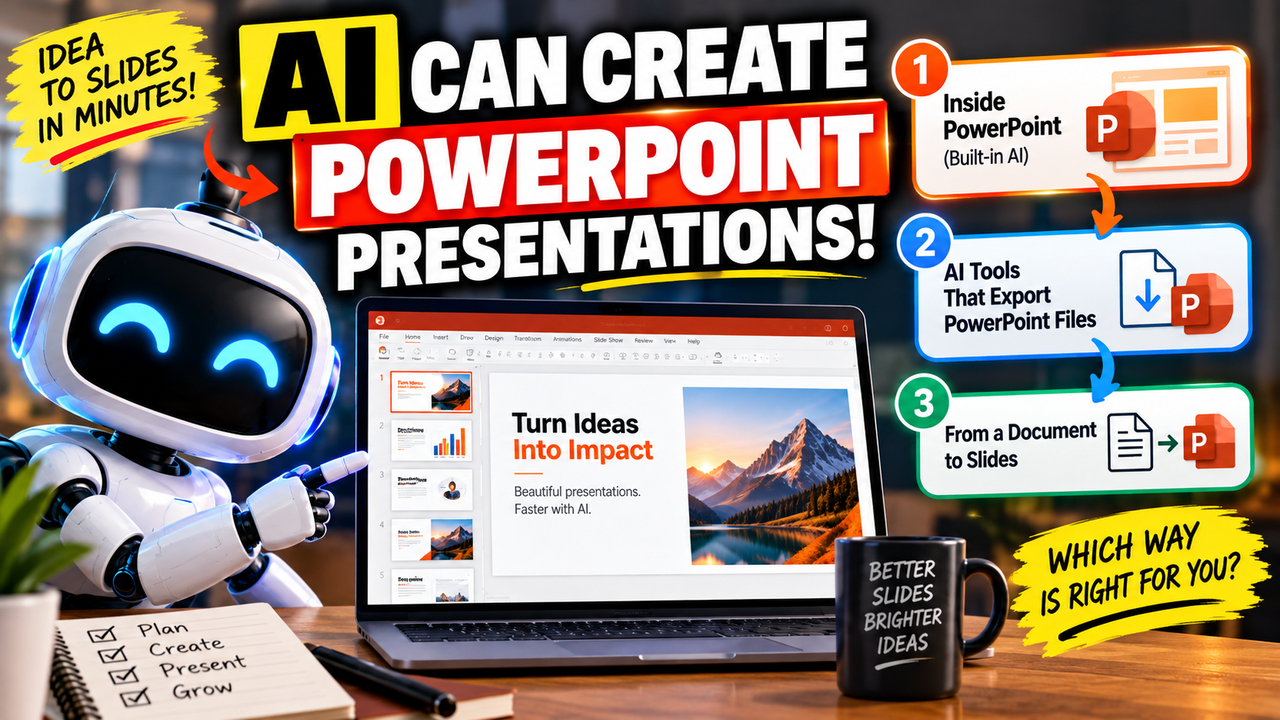
Can AI Create a PowerPoint Presentation?
es, AI can create a PowerPoint presentation, and there are now several tools that do it well. But "create a PowerPoint" turns out to mean a few different things, and the difference matters a great deal depending on what you need at the end. The most important question is not whether AI can make the slides — it can — but whether you get a genuinely editable PowerPoint file or something that only looks like one. This article explains the three ways AI can produce a PowerPoint, what each one is good for, and the single check that saves people the most trouble.
The short answer
AI creates PowerPoint presentations in three broad ways:
- Inside PowerPoint itself, using Microsoft's own Copilot, which drafts slides in the app you already have.
- In a separate AI maker that exports a PowerPoint file — you build the deck on a website and download a
.pptx. - From a document you already have — tools that read a report, PDF or set of notes and turn it into a deck.
There is also a fourth, closely related option: add-ins that install into PowerPoint and let AI generate or edit slides inside it. Which route suits you depends mainly on where you want to end up — working in PowerPoint, or downloading a file to hand over. We cover that decision in more depth in our guide to choosing an AI presentation tool; here, the focus is PowerPoint specifically.
Route 1: AI built into PowerPoint (Microsoft Copilot)
The most direct route is Microsoft's own AI. Microsoft Copilot is built into PowerPoint and can draft a presentation from a short prompt or from an existing Word document, then let you refine it using the normal PowerPoint tools. Because it works inside the app, the slides are native PowerPoint from the very start — there is no export step and nothing to convert.
The catch is access. Copilot in PowerPoint requires a paid Microsoft 365 Copilot licence, which is an add-on to a Microsoft 365 subscription rather than something included by default. So it is not free, and not everyone with PowerPoint has it. But if your workplace already provides it, it is often the simplest option available, precisely because you never leave PowerPoint.
An add-in like Plus AI fills a similar role from a different direction: it installs into PowerPoint (and Google Slides) and can both generate new decks and, unusually, edit decks you already have. If your real task is keeping existing presentations up to date rather than starting from scratch, that is worth knowing about.
Route 2: AI makers that export a PowerPoint file
The second route is the largest category: standalone tools where you describe or paste what you want, the AI builds a deck on the website, and you download it as a PowerPoint file. Gamma, Canva, Presentations.AI, Decktopus and SlideSpeak all work this way, though they differ in how they generate and, importantly, in what the exported file is actually like.
This is where the crucial distinction lives, so it is worth stating plainly. When these tools "export to PowerPoint," some produce a fully editable .pptx — real slides with text you can change, shapes you can move, and layouts you can restyle. Others produce something that looks like your deck but is much harder to edit: flattened images, or slides whose careful design comes apart the moment you open the file. Both are technically a "PowerPoint export." Only one gives you a file you can genuinely work with afterwards.
As a rough guide from how these tools are documented: Canva and Beautiful.ai export editable PowerPoint files; SlideSpeak's whole selling point is a native, editable .pptx; Gamma exports to PowerPoint but flattens its reflowable design, so the result is less cleanly editable; and tools built around other formats, such as Prezi and NotebookLM, give you slides with much less editing control. None of this is hidden dishonesty — it follows from how each tool is built — but the marketing rarely spells it out, so check before you commit.
Route 3: Turning a document into a PowerPoint
The third route starts with a problem rather than a blank page: you already have the content — a report, a PDF, a research paper, a page of notes — and you want it as slides. Several tools specialise in this. They read your document and produce a deck that follows its structure, which saves you from copying and condensing the material by hand.
SlideSpeak is a good example, because it will read a whole file and build an editable PowerPoint from it, and it lets you chat with the document while you shape the deck. This route overlaps with Route 2 — the output is still a downloadable file — but the starting point is different, and it is often the fastest way to get from existing material to a first-draft deck. We walk through the process in detail in how to turn a document or PDF into slides with AI.
The one check that matters most: editable or not
If you take one thing from this article, make it this. Before you build a whole deck in any AI tool, find out what the PowerPoint export actually is:
- Fully editable
.pptx— you can change text, move elements and restyle slides in PowerPoint. This is what you want if the file has to be edited, handed to a colleague, or dropped into a company template. - Flattened or image-based — the slides open in PowerPoint but behave like pictures, or the design breaks apart. Fine if you only need to present or share as-is; frustrating if you need to make changes.
The reason this trips people up is timing: you often discover the limitation at export, after you have already built the deck. A two-minute test — generate one slide, export it, and try to edit the file — tells you more than any feature list. If editability matters to you, favour tools documented as producing editable PowerPoint (Copilot, Plus AI, Canva, Beautiful.ai and SlideSpeak among them) and test the export early.
Can ChatGPT make a PowerPoint?
This comes up constantly, so it is worth answering directly. ChatGPT is excellent at the content of a presentation — it will write an outline, draft the text for each slide and suggest speaker notes, and that is genuinely useful. What it does not do in an ordinary chat is hand you a finished, designed .pptx file. You would take its outline and paste it into PowerPoint or into one of the tools above.
Some setups go further — certain custom GPTs, plug-ins or file tools can generate a rough slide file — but for a presentable, on-brand deck, a dedicated presentation tool does a much better job of design and layout. A sensible workflow is to use ChatGPT to sharpen your content and structure, then use a purpose-built tool to turn that into actual slides.
Which route should you choose?
Putting it together, here is where most people land.
| Your situation | Best route | Example tools |
|---|---|---|
| You already have (and pay for) Microsoft 365 Copilot | AI inside PowerPoint | Microsoft Copilot |
| You want to generate and edit inside PowerPoint or Google Slides | Add-in | Plus AI |
| You want AI to build a deck you can download and edit | Maker with editable export | Canva, Beautiful.ai, SlideSpeak |
| You want the fastest, most distinctive-looking draft to present | Maker (mind the export) | Gamma |
| You already have a document to turn into slides | Document-to-deck | SlideSpeak |
| You want to do it for free | Free plan (check export limits) | Canva, Gamma |
Two notes on "free." Several tools have genuine free plans, but the free tier is often where export is restricted — Gamma watermarks free exports, and some tools do not let you download a file at all without paying. So "make a PowerPoint for free" is possible to draft, but downloading the finished file frequently requires a paid plan. Our free AI presentation tools guide explains where each free plan actually stops.
What AI is good at, and what still needs you
AI is genuinely good at the parts of a presentation that take the most time: proposing a structure, drafting text for each slide, and producing a coherent first version far faster than starting from a blank file. Where it still needs you is judgement and accuracy. It can state something confidently and get it wrong, it does not know which point your particular audience cares about, and it cannot tell that a claim needs a source. Treat what it produces as a strong first draft, not a finished deck.
A sensible way to actually do it
- Decide where the deck needs to end up. In PowerPoint you already use? Choose Copilot or an add-in. A file to download and edit? Choose a maker with editable export. Working from a document? Choose a document-to-deck tool.
- Give it a clear starting point. A tidy prompt or a well-structured source document produces a far better deck than a vague request.
- Review the outline before the design. If the tool shows you the structure first, fix it there — it is much quicker than rearranging finished slides.
- Export early and check editability if you need to change the file later.
- Edit and fact-check. Tighten the wording, cut the filler, and verify every name, number and claim against your source before you present.
The honest bottom line
AI can absolutely create a PowerPoint presentation, and for a first draft it will usually save you real time. The choice is less about which tool is "best" and more about your finish line: if you live in PowerPoint and your organisation provides Copilot, use it; if you want a downloadable file you can keep editing, pick a maker with a genuinely editable export and test that export early; and if you are starting from a document, a document-to-deck tool is the fastest path. Whatever you use, keep the file editable if you will need to change it, and check the facts yourself — the AI drafts the deck, but the finished presentation is still yours.
To compare the tools that work inside PowerPoint, see our guide to the best AI add-ins for PowerPoint and Google Slides, or browse the AI PowerPoint tools category to weigh the options side by side.
Frequently asked questions
Can AI create a PowerPoint for free? You can usually draft one for free, but downloading the finished file is often paid. Several tools have genuine free plans, yet the free tier is where export is commonly restricted — some add a watermark, and some do not let you download a PowerPoint at all without upgrading. Check the export limits before you build the whole deck.
Are AI-generated PowerPoints editable?
Sometimes fully, sometimes not. Some tools export a real, editable .pptx; others export flattened or image-based slides that are hard to change. If you need to edit the file afterwards, favour tools documented as producing editable PowerPoint and test the export on one slide first.
Can ChatGPT make a PowerPoint presentation?
ChatGPT can write the content, outline and speaker notes, which is genuinely helpful, but it does not hand you a finished, designed .pptx in an ordinary chat. Use it to sharpen your content, then turn that into slides with PowerPoint or a dedicated presentation tool.
Does Microsoft PowerPoint have built-in AI? Yes. Microsoft Copilot is built into PowerPoint and can draft a deck from a prompt or a Word document, then let you refine it with the normal tools. It requires a paid Microsoft 365 Copilot licence, so it is not part of PowerPoint by default.
Can AI turn a document or PDF into a PowerPoint? Yes. Tools that specialise in this read your document and build a deck from its content, which is faster than copying and condensing the material yourself. SlideSpeak is one example; see our guide on turning a document or PDF into slides with AI for the full process.
What is the best AI tool for making a PowerPoint? There is no single winner — it depends on your finish line. If you already pay for Microsoft 365 Copilot, that is the most direct route; if you want a downloadable, editable file, Canva, Beautiful.ai or SlideSpeak are strong; if you want to work inside PowerPoint or Google Slides, an add-in like Plus AI fits. Test your shortlist on your own content.
Will an AI-generated PowerPoint look professional? The design is usually clean and presentable, but the AI does not know your audience or your brand, and it can include weak or inaccurate content. Expect a good first draft that still needs editing and fact-checking before it is ready to present.
Pricing, plans and features change often — always confirm the current details on each vendor's own site before you buy.
Listings related to Can AI Create a PowerPoint Presentation?
Microsoft Copilot for PowerPoint
Microsoft's AI built directly into PowerPoint — builds decks from a prompt, a Word doc or a PDF, all as native editable .pptx. Unmatched integration with your real files; no free tier, requires a paid Microsoft 365 + Copilot licence.

Plus AI
An AI add-in that generates and edits presentations natively inside Google Slides and PowerPoint — no separate app, no export step. Strong at improving existing decks, not just making new ones. Trial only, no free plan.

Gamma
An AI presentation maker that turns a prompt or a pasted document into a finished-looking deck in about a minute. A standalone web app — great free plan for on-screen decks, but clean PowerPoint export and branding are paid.

Canva
The presentation side of Canva's all-in-one design suite, with Magic Studio AI turning a prompt or document into an editable, template-based deck. Easiest on-ramp, generous free tier, editable PowerPoint in and out — but a generalist, not a specialist.
Presentations.AI
A generative-AI-first presentation maker — "ChatGPT for presentations." You describe a deck and it builds the whole thing, then you refine conversationally. Genuine free plan; fast, but a thin independent track record so far.

Beautiful.ai
A standalone AI presentation app built on rule-based smart templates that auto-format every slide. Built for business teams who want on-brand, consistent decks without manual design — no free plan, editable PowerPoint export on every paid tier.
Decktopus
A guided, opinionated AI deck builder for non-designers that generates the slides plus delivery extras — speaker notes, audience Q&A, lead-capture forms, voiceover and hosting. Cheap entry point; no true free plan.
NotebookLM
Google's AI research tool — grounded strictly in the sources you upload — that also generates slide decks and audio/video overviews. A useful outlier: free and accurate, but its PowerPoint export is image-based, not editable.

Prezi
Presentation software built on a zooming, non-linear canvas instead of a slide stack, now with Prezi AI generation and Prezi Video. Distinctive and memorable for live talks — but its PowerPoint export is static, not editable.