
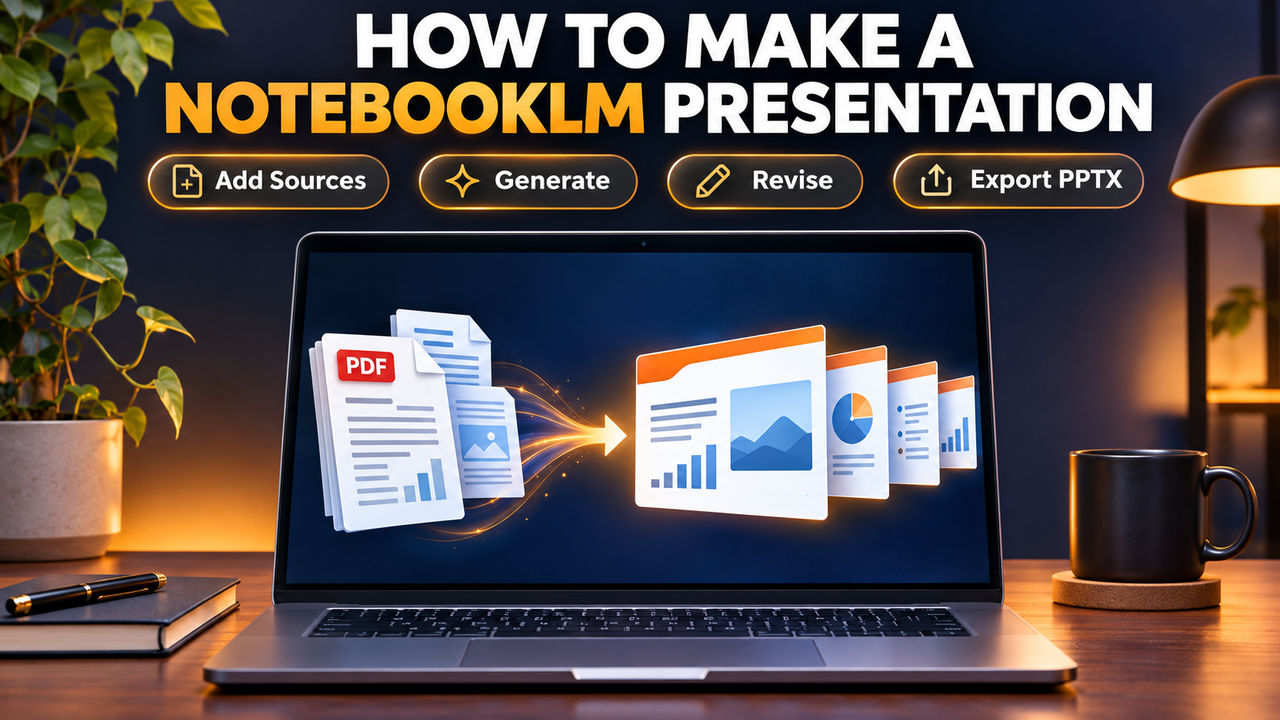
How to Make a Presentation with NotebookLM (Gemini Notebook)
You make a presentation in NotebookLM by adding your sources to a notebook, opening the Studio panel, choosing Slide Deck and pressing Generate. A few minutes later you get a finished deck built only from what you uploaded, which you can revise slide by slide and download as a PDF or a PowerPoint (.pptx) file.
One naming note before the steps. Google renamed NotebookLM to Gemini Notebook on 16 July 2026. It is the same product, existing notebooks and shared links still work, and the help pages now live at support.google.com/gemininotebook. This guide uses both names because you will still see both. The details below were checked on 20 October 2026 against Google's own help pages.
What a NotebookLM presentation is good for
NotebookLM is a source-grounded tool. It does not start from a one-line topic the way prompt-to-deck generators do. It reads the documents, links and files you give it and turns them into slides. That makes it a strong fit when you already have the material (a report, lecture notes, a research PDF, meeting transcripts) and need a deck that sticks to it.
It is a weaker fit when you need a branded, fully editable PowerPoint that a team will keep working on. More on that in the export section.
Step 1: Create a notebook and add your sources
Open NotebookLM, create a new notebook and add sources. According to Google's sources help page, you can upload:
| Source type | Supported |
|---|---|
| PDF, .txt, Markdown, CSV, ePub | Yes |
| Word (.docx) | Yes |
| PowerPoint (.pptx) | Yes |
| Google Docs, Google Slides (up to 100 slides), Google Sheets (up to 100k tokens) | Yes |
| Images (png, jpg, webp, heic and others) | Yes, though some image types may work less well |
| Audio (MP3, WAV and others) | Yes, transcribed on import; files with no speech are not supported |
| Web URLs, public YouTube videos with captions, pasted text | Yes |
Each source can hold up to 500,000 words, or 200MB for an uploaded file. A free notebook takes up to 50 sources.
So yes, you can upload a PowerPoint to NotebookLM, and it can read it. That is useful if you want to rebuild an old deck, merge two decks, or turn last year's slides plus a new report into one updated presentation.
Keep the source list tight. If you only want three of your ten sources in the deck, you can pick them in the next step, but a notebook built around one topic gives cleaner slides.
Step 2: Generate the slide deck in Studio
In the Studio panel, select Slide Deck. You need edit access to the notebook to do this. Before you generate, you can set:
- Format: Detailed Deck (full text, meant to be read on its own or emailed) or Presenter Slides (more visual, with key talking points for when you are speaking).
- Length: Short or Default. A Long option is limited to Google AI Ultra subscribers, according to 9to5Google's February 2026 report.
- Output language.
- Which sources to use.
- A text description of the deck you want.
Then choose Generate now or Generate later. Google says generation can take several minutes, and you can keep working in the notebook while it runs. Ultra subscribers also get an option to review and edit an outline before the final deck renders.
Step 3: Write a prompt that tells it what the deck is for
The description box is where most of the quality comes from. Google's help page suggests describing the audience and visual style. In practice it helps to say who will see the deck, what they should do afterwards, how many slides you want and what to leave out.
These are example prompts we wrote for this guide. Adapt them to your own sources.
Example 1: a class or training session
"Presenter slides for a 15-minute talk to first-year nursing students. Cover only chapters 2 and 3. One idea per slide, plain language, a short recap slide at the end with three questions to discuss."
Example 2: a work update
"Detailed deck summarising the Q3 report for the leadership team. Start with the three numbers that changed most, then risks, then next steps. Neutral corporate style, dark blue and white, no stock-photo people."
Example 3: research to a client pitch
"Ten slides for a client who has not read the research. Explain the problem, the main findings with figures from the sources, and two recommendations. Keep text short and put supporting detail in the speaker-style notes."
Example 4: rebuilding an old PowerPoint
"Use the uploaded 2025 deck for structure and the new 2026 report for figures. Keep the same section order, replace outdated numbers, and flag any slide where the sources disagree."
A few things that tend to help, based on how the feature is described: name the sources or chapters to use, give a slide count, and say whether you want text-heavy or visual slides. Those match the format and length controls Google already exposes, so the model has a clear target.
Step 4: Revise individual slides
Since February 2026 you no longer have to regenerate the whole deck to fix one slide. Open the deck, select Revise and type instructions for specific slides. Google's help page says you can edit text, change layouts, update visuals, delete slides and reorder them by dragging thumbnails. Changes collect as "Pending Changes" until you select Generate revised deck.
Two limits to know. Each revision creates an entirely new deck, and your sources are not considered during revisions, so a request like "add the figures from page 12" may not work the way you expect. Google also notes quota limits on revisions, so batch your changes into one pass.
You can also present straight from NotebookLM with Start slideshow (arrow keys to move, Esc to exit).
Step 5: Export to PowerPoint or PDF
From the deck's three-dot menu, select Download. Google's help page lists two formats: PDF and PowerPoint (.pptx). The help page does not mention a direct Google Slides export. When PPTX export launched in February 2026, the NotebookLM team said Google Slides support was "coming next", and we could not find a Google page confirming it has shipped as of 20 October 2026. The workaround is to download the .pptx and open it in Google Slides.
Can you edit NotebookLM slides in PowerPoint?
Google's help page does not say whether the exported slides contain editable text boxes. Guides published in 2026 by Alai and SlidesPilot both report that the PPTX contains image-based slides, so clicking a heading in PowerPoint selects a flat picture rather than text you can retype. The French site Blog du Modérateur, covering the February 2026 launch, described the PPTX export as editable. Alai and SlidesPilot sell conversion tools, so they have a reason to stress the problem, and Google itself has not clarified.
The practical takeaway: download the .pptx and click into a slide before you plan your edits. If the text is not selectable, you can still reorder slides, add your own slides, add speaker notes and present the file. Changing wording or applying a corporate template will mean rebuilding those slides, or using the Revise step before you export.
If fully editable PowerPoint output matters more than source grounding, tools built around editable files are a better match. SlideSpeak turns documents into native PowerPoint files, and Gamma exports to PowerPoint and Google Slides (our guide on whether Gamma exports to PowerPoint covers what survives the export). For a side-by-side look at the two, see our NotebookLM vs Gamma comparison.
Step 6: Share your NotebookLM presentation
Google gives three ways to share a slide deck:
- Share a link to the deck. The notebook must be shared with the person, or set to "Anyone with a link", and then you copy the Slide Deck link. The recipient gets access to the whole notebook, not only the slides.
- Share the whole notebook. Collaborators can then open the deck in the Studio panel.
- Download the PDF or PPTX and send the file.
Public link sharing is available on consumer accounts only, not on Workspace Enterprise or Education accounts. Only owners and editors can change access, and a deck's share link stops working if the deck is deleted. If your sources are confidential, sending the PDF is usually safer than a link that opens the full notebook.
Limits and watermarks, briefly
Slide decks draw on the same usage allowance as other Studio outputs. Google does not publish a fixed number of decks per day. Its usage-limits page says quotas refresh every 5 hours up to a weekly limit, with Google AI Plus at 2x the standard limit, AI Pro at 4x, and AI Ultra at 5x or 20x the Pro level. The Studio panel shows the expected usage cost before you generate. Slide decks are also only available to users over 18.
On watermarks, Google's plans page lists watermark removal for Pro and Ultra subscribers only, and says a visible watermark is applied regardless of plan in India, South Korea and Vietnam. Free-plan decks should therefore be expected to carry a visible watermark. Our full guide to NotebookLM limits breaks down each plan's caps in more detail.
Is NotebookLM the right presentation tool for you?
| Your situation | Good fit? |
|---|---|
| You have long source material and need a faithful summary deck | Yes, this is its main strength |
| You need a quick first draft for a class, study session or internal briefing | Yes |
| You need slides you can retype and restyle in PowerPoint or Google Slides | Check the export first; many users report image-based slides |
| You need brand fonts, colours and templates applied | Weak; consider a tool with brand controls |
| You need to start from a topic with no source documents | Weak; prompt-to-deck tools suit this better |
For the document-first route with other tools, our guide to turning a document or PDF into slides with AI compares the options, and can AI create a PowerPoint presentation covers native versus exported files in more detail.
FAQ
Can NotebookLM make a PowerPoint presentation? Yes. Generate a Slide Deck in Studio, then download it as a .pptx file from the three-dot menu. Whether the text inside is editable is less clear; see the export section above.
Can you upload a PowerPoint to NotebookLM? Yes. Google lists .pptx as a supported source type, and Google Slides files up to 100 slides can be added too.
Can NotebookLM read PowerPoints? Yes. It reads the content of uploaded .pptx files and Google Slides decks so you can chat with them or use them as sources for a new deck.
Can NotebookLM export to Google Slides? Google's help page lists only PDF and PPTX downloads. You can upload the .pptx to Google Drive and open it in Google Slides.
How do I share a NotebookLM presentation? Share the notebook (or set it to "Anyone with a link") and copy the Slide Deck link, or download the PDF or PPTX and send the file.
Is NotebookLM free for presentations? Slide decks are available on the free plan with standard usage limits. Paid Google AI plans raise those limits and, on Pro and Ultra, allow watermark removal.
Next step
If your presentation starts from documents you already have, NotebookLM is a sensible first stop. See the NotebookLM listing for plans and features, or browse our AI presentation makers if you need fully editable or branded slides.
Listings related to How to Make a Presentation with NotebookLM (Gemini Notebook)
NotebookLM
Google's AI research tool — grounded strictly in the sources you upload — that also generates slide decks and audio/video overviews. A useful outlier: free and accurate, but its PowerPoint export is image-based, not editable.

SlideSpeak
SlideSpeak is a standalone AI presentation maker that turns documents, PDFs, existing slides or a plain topic into a native, editable PowerPoint deck, with an AI assistant you can chat to about your source file

Gamma
An AI presentation maker that turns a prompt or a pasted document into a finished-looking deck in about a minute. A standalone web app — great free plan for on-screen decks, but clean PowerPoint export and branding are paid.