
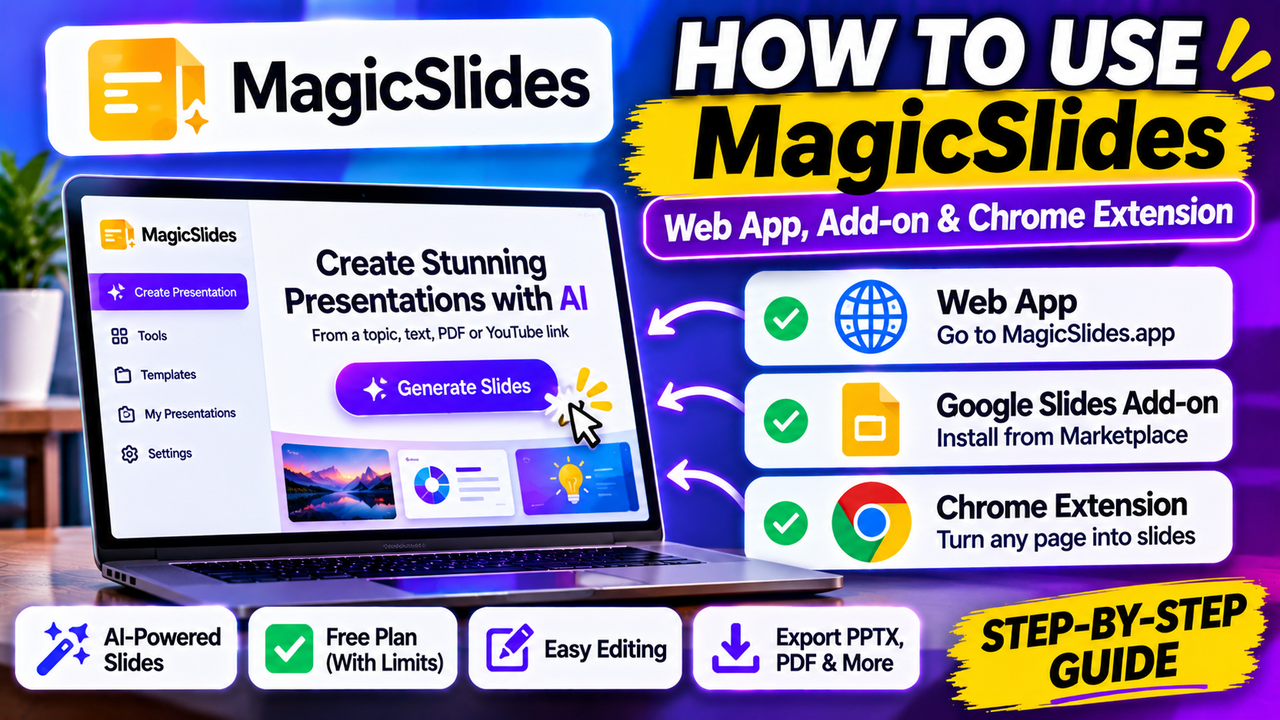
How to Use MagicSlides: Web App, Google Slides Add-on and Chrome Extension
How to Use MagicSlides: Web App, Google Slides Add-on and Chrome Extension
To use MagicSlides, sign up at magicslides.app, pick an input (a topic, pasted text, a PDF, a YouTube link or a web page), choose a slide count and theme, then generate and download the deck as PPTX, PDF or Google Slides. If you work in Google Slides, you can skip the website and install the MagicSlides add-on from the Google Workspace Marketplace, which builds the slides straight into your open presentation.
This tutorial walks through each way of using it, what the free plan allows, and where it fits less well. Product details were checked on 20 October 2026 against MagicSlides' own pages, the Google Workspace Marketplace listing and the Chrome Web Store listing.
The four ways to use MagicSlides
MagicSlides is one service with several entry points. Your account and plan limits are shared across them.
| Entry point | Where you install or open it | Best for |
|---|---|---|
| Web app | magicslides.app in any browser | Most inputs (topic, text, PDF, DOCX, YouTube, URL) and downloading PPTX or PDF |
| Google Slides add-on | Google Workspace Marketplace, then Extensions menu in Google Slides | Building slides inside an existing Google Slides file |
| Chrome extension | Chrome Web Store ("Magicslide.app") | Turning the web page, PDF or YouTube video you are viewing into slides |
| ChatGPT GPT | Listed by MagicSlides as a "ChatGPT Integration (GPT)" | Starting a deck from a ChatGPT conversation |
MagicSlides also lists iOS and Android apps on its homepage. It does not list a native PowerPoint add-in; PowerPoint users get a .pptx download instead.
Method 1: use the MagicSlides web app
This is the most flexible route and the one to start with if you are unsure.
- Go to magicslides.app and create an account. The homepage says no credit card is needed to start.
- Choose how you want to create the deck. The homepage names topic, content (pasted text), URL, PDF, YouTube and DOCX as inputs, and the tools menu adds converters for audio, Excel data and a pitch deck generator.
- Enter your input. For a topic, a short prompt works. MagicSlides' topic-to-PPT page says it generates roughly 8 to 15 slides by default and that you can ask for a specific count in the prompt.
- Pick a theme and language. The company says it has more than 50 themes and supports over 100 languages for topic-based decks.
- Generate, review the result, and request changes by typing them as a prompt.
- Download as PPTX, PDF or Google Slides.
Once you download the .pptx, fonts, colours and layouts can be adjusted in PowerPoint or Google Slides like any other file.
Turning a PDF, YouTube video or web page into slides
The converters live under magicslides.app/tools. They follow the same pattern: paste or upload the source, generate, then edit and download.
- PDF to PPT: upload the file (MagicSlides says up to 100 MB, including scanned PDFs via OCR). The tool page says free users can convert up to 3 PDFs per month.
- YouTube to PPT: paste the video URL. The tool page says processing usually takes 1 to 3 minutes and that the video's audio is not embedded in the slides.
- URL to PPT: paste a link and the text on that page becomes the outline.
These converters work from the text or transcript, so the slides are a summary of the source. Expect to check facts, numbers and names against the original before presenting. For a broader look at this workflow across tools, see our guide on how to turn a document or PDF into slides with AI.
Method 2: how to use MagicSlides in Google Slides
The Google Slides add-on is the most popular way in. Its Marketplace listing, titled "MagicSlides – AI PPT Maker for Google Slides", showed over 1 million installs and a 4.7-star average from 1,483 ratings on 20 October 2026, with a last update of 17 October 2026. You may also see it referred to by its older name, "MagicSlides App: GPT for Slides".
Install the MagicSlides Google Slides add-on
- Open the Google Workspace Marketplace and search for MagicSlides, or open any Google Slides file and go to Extensions, then Add-ons, then Get add-ons.
- Click Install and sign in with your Google account.
- Review the permissions. The listing says the add-on can view and manage the presentations it is installed in, connect to an external service, and see your email address and basic profile information.
If you use a work or school Google account, your administrator may need to allow the add-on first.
Generate slides inside Google Slides
- Open a presentation in Google Slides.
- Go to Extensions, then MagicSlides AI, and open the sidebar.
- Enter a topic, choose the number of slides, and paste any reference text you want it to use.
- Pick a presentation type. The listing mentions categories such as General, Educational, Sales and Conference.
- Click Generate. The slides appear in your file as normal, editable Google Slides.
From there you edit, rearrange and present with Google Slides' own tools, and share the file the usual way. Because the output is native Google Slides, comments and collaboration work as they do on any deck.
The Marketplace reviews are mixed on reliability. Alongside positive comments about speed and support, some reviewers say generation stalled at "Generating outline" or produced no slides. Google notes that it does not verify these reviews, but if it happens to you, retrying with a shorter prompt or using the web app and exporting to Google Slides is a reasonable fallback.
For a wider view of AI options inside Google's editor, see can you use AI with Google Slides.
Method 3: install the MagicSlides Chrome extension
The Chrome extension appears in the Chrome Web Store as "Magicslide.app". It has a much smaller user base than the add-on: on 20 October 2026 the listing showed about 9,000 users and a last update of 9 October 2025.
- Install it from the Chrome Web Store and pin it to your toolbar.
- Log in to your MagicSlides account. The listing says you must be signed in before generating.
- Open the YouTube video, web page or PDF you want to convert.
- Click the MagicSlides icon, pick a template and click Generate.
- Edit, download or share the deck from your MagicSlides account.
It is handy when the source is already open in a tab. For a topic prompt or uploaded files, the web app does the same job.
Method 4: MagicSlides in ChatGPT
MagicSlides lists a "ChatGPT Integration (GPT)" among the tools included with its Essential and Pro plans. We could not confirm the current GPT Store page on 20 October 2026, so search for MagicSlides in ChatGPT's GPT directory and check that the publisher links to magicslides.app before connecting your account. If you already draft outlines in ChatGPT, this route saves a copy-and-paste step; otherwise the web app or add-on is simpler.
Editing and exporting your deck
Editing depends on where you generated the deck. In Google Slides, you edit directly. In the web app, MagicSlides' tool pages describe editing text, colours and branding, rearranging or deleting slides, and asking for changes in a prompt. For anything detailed, it is usually faster to download the .pptx and finish the job in PowerPoint or Google Slides.
Export options on the pricing page, checked 20 October 2026:
- Essential and Pro: PDF, PowerPoint and Google Slides.
- Premium: PPTX, PDF, PNG, JPG and HTML.
MagicSlides describes its .pptx files as editable in PowerPoint, Google Slides and Keynote, rather than flattened images.
What the free plan lets you do
MagicSlides is free to start, but the free tier is small. On 20 October 2026, the official pricing page listed only paid plans and did not spell out free limits. Our previous check (7 October 2026) and a third-party listing (FitGap, undated) both describe the free tier as up to 3 presentations a month, up to 10 slides each, with a MagicSlides watermark. The PDF converter page separately says free users get 3 PDF conversions a month. Treat the free plan as a trial and confirm the current limits inside your account.
Paid plans, as shown on magicslides.app/pricing on 20 October 2026:
| Plan | Monthly price | Annual price | Presentations per month | Slides per deck |
|---|---|---|---|---|
| Essential | $8 | $80/year (about $6.67/month) | 10 | Up to 10 |
| Pro | $16 | $149/year (about $12.42/month) | 50 | Up to 15 |
| Premium | $29 | $279/year (about $23.25/month) | 50 | 50+ |
All three paid plans remove the watermark. The 10-slide cap on Essential is worth noting if you build longer training or lecture decks.
When another tool may suit you better
MagicSlides fits people who want a fast first draft from a topic, document or video, then plan to finish the deck in Google Slides or PowerPoint. It is less suited to heavy design control or long decks on the cheaper plans.
If you mainly want an add-on that lives inside Google Slides, SlidesAI and Plus AI are the closest alternatives; our Plus AI vs SlidesAI comparison covers how they differ. For a side-by-side of add-ons across both PowerPoint and Google Slides, see the best AI add-ins for PowerPoint and Google Slides.
FAQ
Is MagicSlides free to use? You can start free without a card, but the free tier is limited (reported as 3 presentations a month, up to 10 slides, watermarked). Paid plans start at $8 a month or $80 a year.
How do I add MagicSlides to Google Slides? Install "MagicSlides – AI PPT Maker for Google Slides" from the Google Workspace Marketplace, then open a presentation and go to Extensions, then MagicSlides AI.
Does MagicSlides work with PowerPoint? It exports editable .pptx files that open in PowerPoint. MagicSlides does not list a PowerPoint add-in, so you generate in the web app and download.
Can MagicSlides make slides from a YouTube video? Yes. Paste the link into the YouTube to PPT tool or use the Chrome extension on the video page. It works from the transcript and does not embed the video's audio.
Do I need separate accounts for the add-on, extension and web app? No. They connect to the same MagicSlides account, and plan limits apply across all of them.
Next step
If you want to compare plans, inputs and export options at a glance, the MagicSlides listing has the details in one place. To see how it stacks up against similar generators, browse our AI slide generators category.
Listings related to How to Use MagicSlides: Web App, Google Slides Add-on and Chrome Extension

MagicSlides
MagicSlides is an AI slide generator that turns a topic, document, URL or YouTube video into a presentation — most notably as a native Google Slides add-on that produces editable Google Slides, with a web app and PowerPoint/PDF export as well.

SlidesAI
A lightweight text-to-slides add-in for Google Slides and PowerPoint: paste notes, a topic or a document and it generates a starter deck. Genuine free plan, low price, huge install base — thin on design and editing.

Plus AI
An AI add-in that generates and edits presentations natively inside Google Slides and PowerPoint — no separate app, no export step. Strong at improving existing decks, not just making new ones. Trial only, no free plan.