
How to Use Copilot in PowerPoint: Plans, Setup, Step-by-Step Guide and Fixes
How to Use Copilot in PowerPoint: Plans, Setup, Step-by-Step Guide and Fixes
Yes, Microsoft Copilot works inside PowerPoint, and it can build a presentation from a prompt, add and edit slides, write speaker notes and summarise a deck you already have. You need a qualifying Microsoft 365 plan to use it: Microsoft 365 Personal, Family, Premium or Pro on the consumer side, or a Microsoft 365 Copilot licence at work. Microsoft has also changed how the feature works in 2026, so older tutorials that tell you to click a sparkle icon above the slide may no longer match what you see.
Below: which plans include Copilot in PowerPoint, how to create and edit a deck with it, its limits, and what to do when the button is missing. Plans, prices and features were checked on 20 October 2026 against Microsoft's pricing and support pages.
Which plans include Copilot in PowerPoint?
| Plan | US price (checked 20 Oct 2026) | Copilot in PowerPoint? | AI usage |
|---|---|---|---|
| Microsoft 365 Personal | $9.99/month or $99.99/year | Yes, for the one user | 60 AI credits per month |
| Microsoft 365 Family (up to 6 people) | $12.99/month or $129.99/year | Yes, subscription owner only | 60 AI credits per month, owner only |
| Microsoft 365 Premium (up to 6 people) | $19.99/month or $199.99/year | Yes, subscription owner only | "Extensive" usage (Microsoft gives no number) |
| Microsoft 365 Pro (up to 6 people) | $99.99/month, monthly billing only | Yes, subscription owner only | "Highest" usage |
| Microsoft 365 Copilot (enterprise) | $30 per user/month, paid yearly | Yes | Requires a qualifying Microsoft 365 plan as well |
| Microsoft 365 Copilot Business (add-on) | $21 per user/month paid yearly ($18 promo for eligible existing Business customers, 1 July to 31 December 2026) | Yes | Added to Business Basic, Standard or Premium |
| Copilot Pro | No longer sold | Support ended 1 August 2026 | n/a |
A few points the table can't hold:
- AI credits: on Personal and Family, every AI action (generating text, creating content, editing an image) uses a credit. Credits reset on the first day of each month whatever your billing date, and unused credits do not roll over. Your balance is shown on your Microsoft account page.
- Family sharing: on Family, Premium and Pro, Copilot belongs to the subscription owner. People you share the plan with get the Office apps but not the AI features.
- Copilot Pro: Microsoft stopped selling Copilot Pro and says existing subscriptions were supported until 1 August 2026. Microsoft points former Copilot Pro users to Microsoft 365 Premium.
- Free Copilot Chat at work: since 15 April 2026, Microsoft has restricted what unlicensed business users can do with Copilot Chat inside Word, Excel and PowerPoint. In large organisations, full in-app Copilot (including Agent Mode) now needs a paid Microsoft 365 Copilot licence.
Can you use Copilot in PowerPoint for free?
Not in an ongoing way. The free Microsoft Copilot app is a separate chat assistant, and Microsoft ties Copilot inside the Office apps to paid subscriptions. The closest thing to free is the one-month trial Microsoft offers on Personal, Family and Premium, which gives you the plan's Copilot allowance during the trial. If you want a free option that works inside PowerPoint, see our guide to AI add-ins for PowerPoint and Google Slides.
Where to find Copilot in PowerPoint
- Windows, Mac and web: select Copilot on the Home tab, or the Copilot icon in the lower-right corner of the slide. A chat pane opens on the right. On Mac you need the Microsoft 365 subscription version of PowerPoint, not a one-off Office 2021 or 2024 licence.
- iPad, iPhone and Android: some features (adding slides, summarising) are available, but the set varies by device.
You must be signed in with the account that holds the licence. If you use both a personal and a work account, check which one shows at the top of the window.
How to create a presentation with Copilot from a prompt
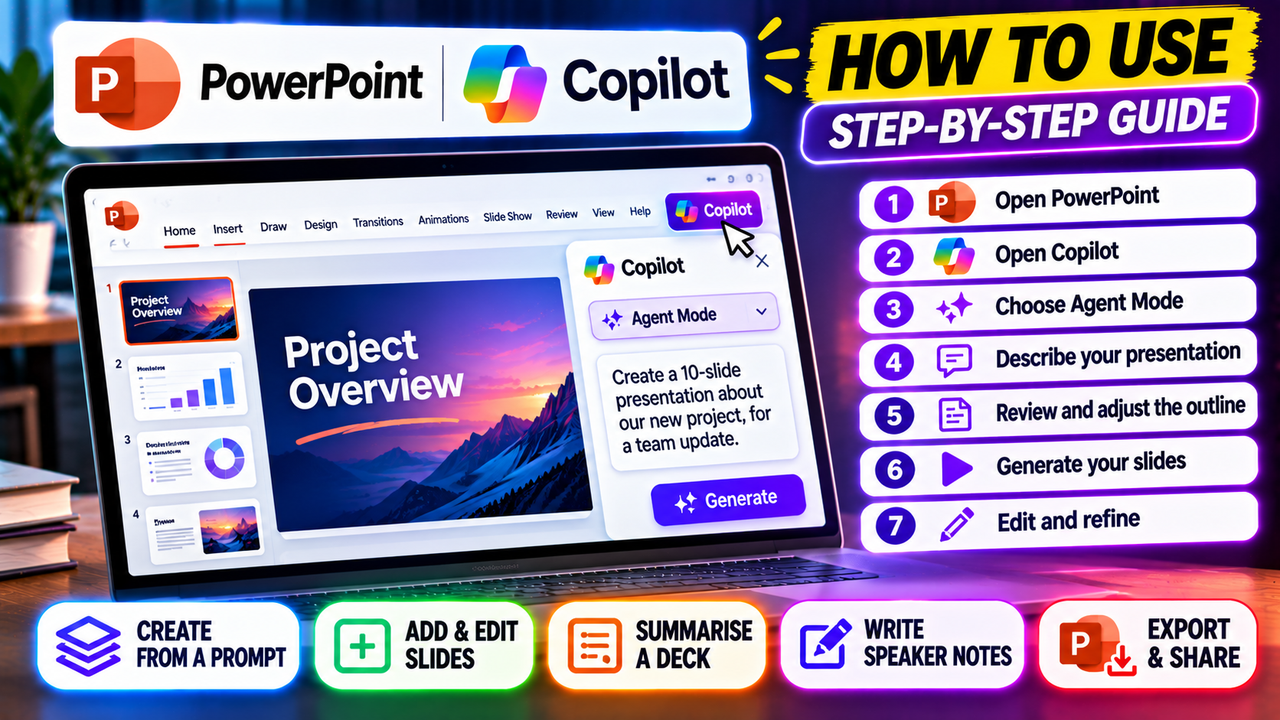
Between March and April 2026, Microsoft moved "create a presentation" and "add a slide" out of the sparkle icon above the slide and into Agent Mode in the Copilot chat pane. Microsoft made these agent features generally available on 22 April 2026, as the default for Microsoft 365 Copilot and Premium users and also available on Personal and Family. Here are the current steps from Microsoft's support page:
- Open a new, blank presentation in PowerPoint. If you want your organisation's look, start from its template instead.
- Open Copilot using the icon in the lower-right corner of the slide.
- In the chat input box, open the add-content (Tools) menu and choose Agent Mode.
- Describe the presentation: topic, audience, purpose, rough length and anything that must be included. For example: "A 10-slide presentation for new staff explaining our expense policy, friendly tone, with one slide of common mistakes."
- Send the prompt. Copilot may ask follow-up questions about audience or style. Answer them or skip and let Copilot decide.
- Review the outline in chat and ask for changes ("merge slides 3 and 4") until the structure is right.
- Tell Copilot to generate the slides.
- Keep editing through chat, then check every slide yourself. Microsoft states that AI-generated content can be inaccurate and should be reviewed.
If you still see the older "Create a presentation" option above the slide, your version hasn't received the change. That flow is similar: prompt, edit the outline, pick a style and image source, then select "Generate slides".
So can Copilot make a PowerPoint? Yes, though quality depends on your prompt and you should expect to edit. For the wider picture, see can AI create a PowerPoint presentation?
How to create a presentation from a Word document or PDF
Microsoft's own documentation is inconsistent here right now:
- Microsoft's current "Create a new presentation" page says referencing files in Agent Mode is "coming soon".
- Another Microsoft support page for the older flow says you can attach up to five files, including Word (.docx), PDF, TXT, Excel and Loop pages, using the paper clip button or by typing "/" in the prompt.
- Microsoft's Copilot in PowerPoint FAQ says home (consumer) users can reference one Word file at a time, and that PDF is available with a work Copilot licence.
In practice, try this:
- Open a new presentation (or your organisation's template).
- Open Copilot. If you see a paper clip, or typing "/" brings up your files, select the Word document or PDF.
- Send the request and review the outline and slides Copilot produces.
- If file referencing isn't offered, work users can sign in to Microsoft 365 Copilot at m365.cloud.microsoft, describe the presentation and ask for it to be built. Microsoft says Copilot then saves the deck to your OneDrive and gives you a link.
Microsoft's tips for Word sources: use built-in heading styles so Copilot can see the structure, include relevant images, and keep the file under 24 MB. For other tools that handle this job, see turning a document or PDF into slides with AI.
Editing slides with Copilot
Can Copilot edit a PowerPoint? Yes, and with Agent Mode most editing now happens through the chat pane, with changes applied directly to the slides. Things you can ask for:
- Add a slide: "Add a slide after slide 4 comparing the two pricing options."
- Add an image: a stock image ("add an image of a school playground") or an AI-generated one. Detailed image prompts work better.
- Rewrite text: auto-rewrite, condense or make professional. It works on whole text boxes only, not partial text, tables, charts or shapes.
- Translate: a text box, a slide or the whole presentation. Microsoft says decks over 1 million text characters, over 500 MB or with many slide masters aren't supported.
- Change the design: try a new theme, or use your organisation's template or Brand Kit.
Summarising and reviewing a deck
Can Copilot review a PowerPoint presentation? It can read the deck and report back, which helps with long or inherited files.
- Open the presentation and select Copilot on the ribbon.
- Ask "Summarize this presentation", "Show key slides" or "Show action items".
- Copilot replies with bullet points and references that point to where it found each item.
You can also ask open questions such as "Which slides repeat the same point?" Microsoft says summaries work on decks up to roughly 40,000 words. It is a second pair of eyes, not a fact-checker.
Microsoft retired the separate Organize feature (sections and summary slides) in July 2025, but you can still ask Copilot in chat to suggest a new order or section breaks.
Writing speaker notes
Copilot can draft notes for one slide or the whole deck. In versions with Agent Mode, ask in the chat pane ("write speaker notes for every slide, about 60 seconds each"). In earlier versions, go to View > Notes, choose all slides or the current slide, then select "Keep it" or "Discard". Microsoft says this works best on presentations with fewer than 50 slides. Rewrite the notes in your own words before you present; they are a starting point.
Limitations to know about
- Credits run out. 60 credits a month on Personal and Family goes quickly if you generate whole decks and images. When they're gone, AI features may stop until the 1st of the next month.
- PowerPoint files and internet only: Copilot works with .ppt and .pptx files and needs a connection.
- Language: many languages are supported, but Microsoft says English quality is highest, and Design Suggestions officially supports only en-US. Prompt-based creation outputs one language at a time.
- Licensing quirks: Family members, users below Microsoft's minimum age for AI features and people on the older "Classic" plans don't get Copilot in the apps.
- Saving: Microsoft's PowerPoint documentation doesn't require a OneDrive save; for new or local files, the account shown in the app must hold the licence. Decks created from the Microsoft 365 Copilot web app are saved to OneDrive. Copilot in Excel does require AutoSave, which is where the OneDrive advice often comes from.
- Accuracy: Microsoft says output can be wrong. Check facts, numbers and images.
Troubleshooting: Copilot not showing in PowerPoint
Work through these in order (based on Microsoft's own troubleshooting guides).
- Check the account. Sign in with the account that holds the plan. On Family, only the owner sees Copilot.
- Check your plan. Classic plans and one-off Office purchases don't include it. Business users need a Microsoft 365 Copilot licence assigned by an admin, and a new licence can take time to appear.
- Refresh the licence. Windows: File > Account > Update License, then restart all Office apps. Mac: open the app menu, select About, then More Info, then Refresh License, and restart.
- Update PowerPoint. On Windows, File > Account > Update Options. On Mac, use Microsoft AutoUpdate (Help > Check for Updates).
- Check privacy settings. Turn on "Experiences that analyze your content" and "All connected experiences". Windows: File > Account > Account Privacy > Manage Settings. Mac: PowerPoint > Preferences > Privacy.
- Check the Copilot setting. If someone turned Copilot off on that device, re-tick "Enable Copilot" (see the next section).
- On the web, refresh the page and allow third-party cookies, which Copilot uses to validate your licence.
- Business accounts only: Copilot isn't available on the Semi-Annual Enterprise update channel or with device-based licensing. Your IT team needs to switch you to Current or Monthly Enterprise Channel and assign a user-based licence.
If Copilot is not showing in PowerPoint on Mac, the cause is usually one of steps 2 to 5: the wrong account, a non-subscription copy of Office, an old build or connected experiences switched off.
Why can't Copilot create PowerPoint slides?
If Copilot opens but won't build slides, check that you have credits left this month, that you're in Agent Mode (or the Create a presentation option), and, at work, that you hold a full Microsoft 365 Copilot licence rather than the basic Copilot Chat access.
How to turn off Copilot in PowerPoint
For personal Microsoft accounts, Microsoft provides a per-device switch:
- Windows: go to File > Options > Copilot, clear "Enable Copilot", select OK and restart PowerPoint. Requires version 2501 or later.
- Mac: go to PowerPoint > Preferences > Authoring and Proofing Tools > Copilot, clear "Enable Copilot" and restart. Requires version 16.93.2 or later.
- Web, iPhone, iPad and Android: there is no switch. Microsoft suggests turning off connected experiences in privacy settings, which also disables other features such as Designer.
The setting applies to PowerPoint on that device only. In work accounts, your administrator controls Copilot.
Copilot or a different AI presentation tool?
Copilot makes most sense if you already pay for Microsoft 365 and want to stay inside native PowerPoint files. If you don't have Copilot, or you'd rather not pay for a Microsoft 365 upgrade for one feature, Plus AI works as an add-in inside PowerPoint and Google Slides. If you're open to drafting outside PowerPoint, Gamma is a common alternative; our comparison of Gamma and Copilot sets out the trade-offs. The AI PowerPoint tools category lists the alternatives.
FAQ
How do I enable PowerPoint Copilot? Subscribe to a plan that includes it, sign in to PowerPoint with that account, update the app and use File > Account > Update License (Windows) or Refresh License (Mac). If it still doesn't appear, check that Enable Copilot is ticked in PowerPoint's settings.
Is Copilot a good slides generator? It produces a usable first draft inside real PowerPoint files, which suits Microsoft 365 users. Expect to edit structure, wording and visuals before presenting.
Can Copilot create a PowerPoint from a PDF? Microsoft's documentation says PDF referencing is supported with a work Copilot licence in the older flow, while file referencing in Agent Mode is still listed as coming soon. Check what your version offers.
Next step
See our Microsoft Copilot in PowerPoint listing for its features, plans and alternatives, or browse AI PowerPoint tools if you need something that works without a Microsoft 365 upgrade.
Listings related to How to Use Copilot in PowerPoint: Plans, Setup, Step-by-Step Guide and Fixes
Microsoft Copilot for PowerPoint
Microsoft's AI built directly into PowerPoint — builds decks from a prompt, a Word doc or a PDF, all as native editable .pptx. Unmatched integration with your real files; no free tier, requires a paid Microsoft 365 + Copilot licence.

Plus AI
An AI add-in that generates and edits presentations natively inside Google Slides and PowerPoint — no separate app, no export step. Strong at improving existing decks, not just making new ones. Trial only, no free plan.

Gamma
An AI presentation maker that turns a prompt or a pasted document into a finished-looking deck in about a minute. A standalone web app — great free plan for on-screen decks, but clean PowerPoint export and branding are paid.