Canva AI Credits Explained: How Many You Get and When They Reset
Canva AI Credits Explained: How Many You Get and When They Reset
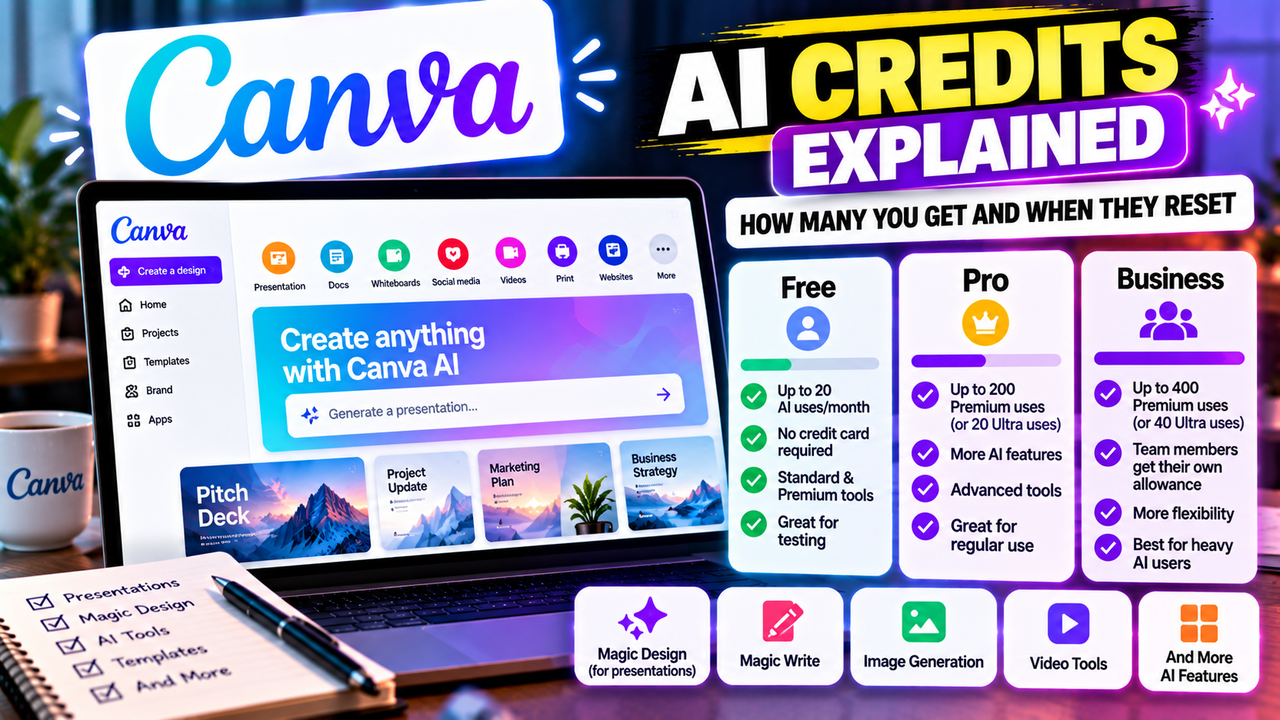
Canva doesn't sell "credits" in the usual sense. Every account gets a monthly AI allowance, counted in uses: the free plan gets up to 20 uses a month, Canva Pro gets up to 200 Premium uses (or 20 Ultra uses), and Canva Business gets up to 400 Premium uses (or 40 Ultra uses). The allowance resets monthly, on the 1st for free accounts and on your billing date for paid ones.
That's the short version. If you mainly use Canva for presentations, the details matter, because the tool that builds a whole deck for you sits in the most expensive tier.
What Canva means by "AI uses"
Canva groups its AI tools into three tiers. Each tier draws on the same monthly pool at a different rate.
- Standard AI covers lighter tools such as the image upscaler, standard-quality image generation and Magic Formulas. On paid plans, Standard tools don't count against your allowance at all (they're still subject to Canva's fair-use limits). On the free plan, they do.
- Premium AI covers tools such as Magic Layers, Canva Code interactives, the form generator and the music and sound-effect generator.
- Ultra AI covers the heaviest work: conversational design with Canva AI 2.0, video clip generation and top-quality image creation.
Canva also has a group of everyday "AI design tools" (Magic Write, Translate, AI Voice, photo and video animations) that paid users can use heavily without touching the allowance.
Canva says the numbers below are estimates for simple, single-tool tasks. A complex request can use more.
How many AI uses each Canva plan includes
| Plan | Monthly AI allowance | Resets |
|---|---|---|
| Canva Free | Up to 20 uses of Standard or Premium tools. No Ultra tools | 12:00 a.m. UTC on the 1st of each month |
| Canva Pro (also Teams and Nonprofits) | Up to 200 Premium uses, or up to 20 Ultra uses | Your billing date each month |
| Canva Education | Up to 200 Premium uses, or up to 20 Ultra uses | Billing date |
| Canva Business and Enterprise | Up to 400 Premium uses, or up to 40 Ultra uses | Your billing date each month |
A few rules that catch people out:
- The allowance is per person. On Teams, Business, Nonprofit, Education and Enterprise accounts, each member gets their own allowance. Canva says allowances "aren't shared or pooled across the team."
- Yearly plans still reset monthly. If you pay annually, your allowance refreshes on your billing day each month, not once a year.
- Free trials get the free allowance. During a Canva Pro or Business trial, your AI allowance is the same as Canva Free. If you start a trial to test Canva's AI deck generation heavily, you won't get Pro-level usage until the paid subscription begins.
- Rollover isn't mentioned. Canva's help page doesn't say unused uses carry over, so treat the allowance as use-it-or-lose-it each month.
Where presentation features fit
Canva's help pages don't list "generate a presentation" as its own line item. You create an AI deck by opening a Presentation design, typing a prompt into Canva AI, editing the outline and clicking Generate presentation. That chat-driven workflow is the closest match to "conversational design with Canva AI 2.0", which Canva places in the Ultra tier.
In practice that means:
- On Canva Free, Ultra tools aren't included, so the full chat-to-deck workflow may be limited or unavailable. Smaller AI edits still draw from your 20 monthly uses.
- On Canva Pro, if each deck generation counts as an Ultra use, 20 Ultra uses works out to roughly 20 full AI-generated drafts a month, fewer if you regenerate a lot. Lighter edits on the slides afterwards mostly use Standard tools (free on paid plans) or Premium tools.
- On Business, you get double that.
For most people making a few decks a month, Pro is plenty. If your job is producing dozens of AI-drafted decks a week, the allowance is a real constraint, and a dedicated generator may suit you better (more on that below).
What happens when you run out
Canva sends a notification as you get close to your limit. After that, it depends on your plan:
- Free: Standard and Premium tools continue with short pauses between generations. Ultra tools aren't available on Free in any case.
- Pro and Teams: Ultra tools stop until your allowance resets. You can keep using Premium features with short pauses, upgrade to Business, or buy the AI Pass monthly add-on.
- Business: Buy AI Pass or a one-time AI top-up.
- Enterprise and Education: Premium features keep working with short pauses.
- Nonprofits: Premium features continue with pauses, and AI Pass is available.
Canva doesn't publish AI Pass or top-up prices on its pricing page; the price appears at checkout after you sign in.
How to check your remaining AI uses
- Open Canva and go to Settings.
- Select Billing.
- Look under AI usage for what you've used and what's left.
Third-party apps inside Canva (for example, outside AI integrations in the Apps panel) have their own limits and don't show up in this number.
Are Canva's AI limits a problem for presentations?
That depends on how you work.
Probably not a problem if you build a handful of decks a month, mostly start from templates, and use AI for rewriting text, translating slides or resizing. Most of that is either outside the allowance or in the Standard tier, which paid users get without counting.
Worth thinking about if you generate many full decks from prompts, iterate by regenerating whole presentations, or have several people on a team who each lean heavily on AI (each person's allowance is separate, so one heavy user can't borrow from a light one).
If AI deck generation is the main reason you'd pay, compare Canva against tools built around that job:
- Gamma is built around prompt-to-deck generation and has its own credit system. See Is Gamma free? for how its limits work, and Gamma vs Canva for a side-by-side comparison.
- MagicSlides and Plus AI work inside Google Slides (Plus AI also supports PowerPoint), which suits you if your team already lives there.
- Decktopus and Beautiful.ai focus on AI-assisted slide layouts with less general design work.
Our roundup of Canva alternatives goes through more options, and Best free AI presentation tools covers the ones you can try without paying.
Frequently asked questions
Do Canva AI credits renew? Yes. Free accounts reset at midnight UTC on the 1st of each month. Paid accounts reset on the billing date each month, including annual plans.
How much do Canva AI credits cost? There's no separate price per credit. The allowance comes with your plan, and extra usage comes from the AI Pass add-on (Pro, Teams, Business, Nonprofits) or one-time top-ups (Business). Canva shows those prices at checkout rather than on its public pricing page.
Is Canva Magic Studio free? Partly. Free accounts get up to 20 Standard or Premium AI uses a month. Ultra tools, including Canva AI's conversational design, need a paid plan.
Does a team share one AI allowance? No. Each member on a team plan gets their own allowance.
Is it worth paying for Canva just for the AI? If AI is the only reason, compare it with a dedicated AI presentation maker first. Canva's value is the whole design suite (templates, brand kit, social and print designs, editable PowerPoint export) with AI on top. Our Canva listing covers what you get beyond AI.
Next step
If you're already in Canva and just want more room for AI, check your usage under Settings > Billing before upgrading. If you're still choosing a tool, start with the Canva listing and compare it with the other options in our AI design suites and AI presentation makers categories.
Listings related to Canva AI Credits Explained: How Many You Get and When They Reset
Canva
The presentation side of Canva's all-in-one design suite, with Magic Studio AI turning a prompt or document into an editable, template-based deck. Easiest on-ramp, generous free tier, editable PowerPoint in and out — but a generalist, not a specialist.
Gamma
An AI presentation maker that turns a prompt or a pasted document into a finished-looking deck in about a minute. A standalone web app — great free plan for on-screen decks, but clean PowerPoint export and branding are paid.
MagicSlides
MagicSlides is an AI slide generator that turns a topic, document, URL or YouTube video into a presentation — most notably as a native Google Slides add-on that produces editable Google Slides, with a web app and PowerPoint/PDF export as well.
Plus AI
An AI add-in that generates and edits presentations natively inside Google Slides and PowerPoint — no separate app, no export step. Strong at improving existing decks, not just making new ones. Trial only, no free plan.
Decktopus
A guided, opinionated AI deck builder for non-designers that generates the slides plus delivery extras — speaker notes, audience Q&A, lead-capture forms, voiceover and hosting. Cheap entry point; no true free plan.
Beautiful.ai
A standalone AI presentation app built on rule-based smart templates that auto-format every slide. Built for business teams who want on-brand, consistent decks without manual design — no free plan, editable PowerPoint export on every paid tier.